ProductionProcess note
How to use Suno.AI (Create Music with AI) - Tutorial
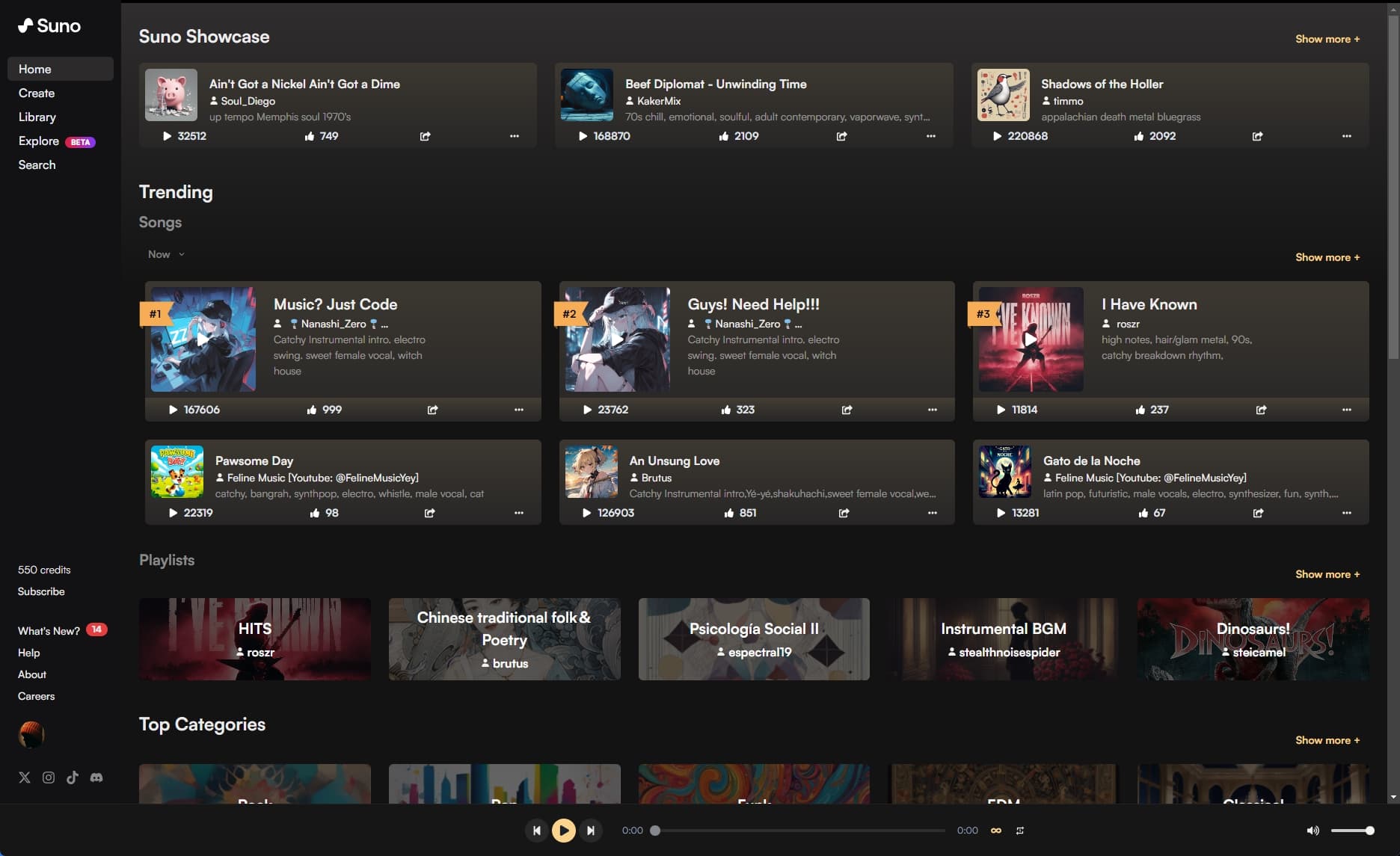
Learn how to create music with Suno AI, the powerful AI music generator. This step-by-step tutorial covers everything from signing up to advanced prompt engineering and workflow integration with FL Studio.
12 min readUpdated
Hi all. I’m Livvux, a music producer (inspired by Avicii), and this topic here makes me kinda sad. But: Today, with advancements in technology, anyone can now compose and produce music. Suno.AI offers an intuitive platform for music creation, allowing users to craft melodies, harmonies, and rhythms effortlessly. This guide will walk you through the process in five easy steps, enabling you to bring your musical ideas to life.
Step 1: Sign Up and Log In
-
Visit the Website: Go to Suno.
-
Create an Account: Click on the 'Sign Up' button.
-
Confirm Your Email: Check your email inbox for a confirmation message from Suno.AI. Click the link to verify your account.
-
Log In: Return to the website and log in with your new credentials.
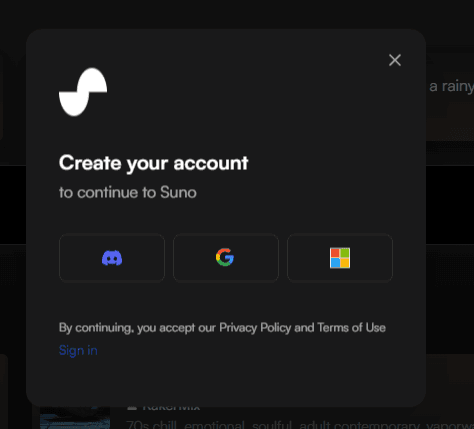
You can login via Discord, Google or Microsoft.
Step 2: Click on ‘Create’
Before creating new music, you have to log in.
- Dashboard: Once logged in, you’ll be taken to your dashboard. Click on ‘Create’.
- Project Name: Enter a name for your project. This helps you keep track of different compositions.
- Genre and Style: Select the genre and style of music you want to create. Suno.AI offers a variety of options, from classical to electronic.
- Instruments: Choose the instruments you want to include in your composition. You can add or remove instruments as you develop your piece.
Step 3: Create music with AI
Automatic mode
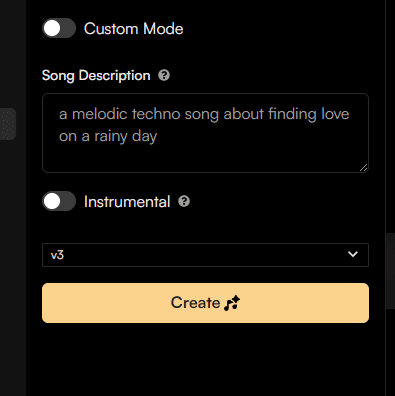
On this mode, you can type in a song description. For example “a melodic song about my dog”.
Custom Mode
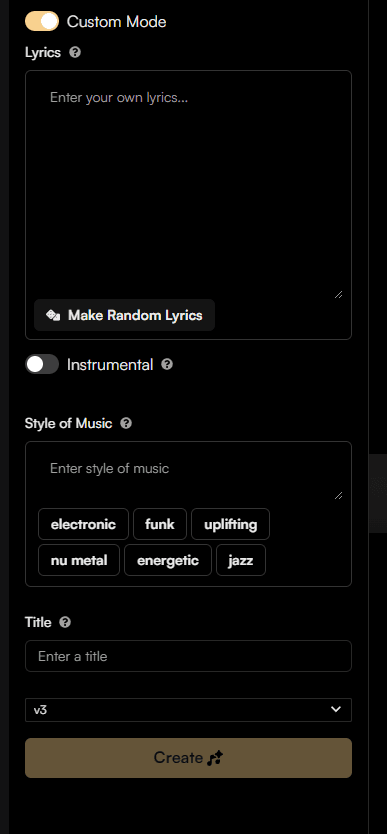
The SunoAI Custom Mode allows you to enter following details manually:
- Lyrics
- Style of Music
It’s possible to create music with greater detail and precision.
Advanced Tips: Getting Better Results from Suno
Okay, so you've got the basics down. Now let me share some advanced tips that I've learned from using Suno extensively. These will help you get better results and avoid some common pitfalls.
Prompt Engineering for Better Results
The key to getting good results from Suno is writing good prompts. Here's what I've learned:
Be Specific About Genre and Style
Instead of just saying "electronic music," try something like:
- "Uplifting progressive house track with a driving bassline and melodic lead synth"
- "Acoustic folk song with fingerpicked guitar and soft vocals"
- "Dark techno track with heavy kick drum and atmospheric pads"
The more specific you are, the better the AI understands what you want.
Include Mood and Emotion
Suno responds well to emotional descriptors:
- "Melancholic piano ballad"
- "Energetic dance track"
- "Dreamy ambient piece"
Mention Specific Instruments
If you want certain instruments, mention them:
- "Featuring acoustic guitar, piano, and strings"
- "Heavy electronic track with synthesizers and electronic drums"
Reference Other Artists (Carefully)
You can reference other artists, but be careful – Suno might try to copy their style too closely. I've had mixed results with this. Sometimes it works great, other times it feels too derivative.
Custom Mode: When to Use It
I use Custom Mode when I have specific lyrics or a clear vision for the song. Here's my workflow:
- Write the lyrics first (or have them ready)
- Describe the style in detail
- Generate multiple versions and pick the best one
- Use the "Continue" feature to extend songs that are too short
The Custom Mode gives you more control, but it also requires more input from you. I find it's worth it when I have a specific idea in mind.
Workflow Integration: Using Suno with FL Studio
Here's the thing – Suno is great for generating ideas, but I don't use it as my final production tool. Instead, I use it as a starting point and then bring everything into FL Studio for editing and mixing.
My Workflow
Step 1: Generate in Suno
I'll create a few variations in Suno, experimenting with different prompts until I get something I like. Sometimes I'll generate 5-10 versions before I find one that clicks.
Step 2: Export the Audio
Suno lets you download the generated tracks as MP3 files. I download the ones I like and save them to a folder on my computer. If you want more control over mixing, check out my guide on how to export Suno stems to separate vocals, drums, and other elements.
Step 3: Import into FL Studio
I import the Suno-generated track into FL Studio as a reference or starting point. Then I start building around it:
- I might use the Suno track as a foundation and add my own elements
- I might extract just the melody or chord progression
- I might use it as inspiration and create something completely new
Step 4: Edit and Refine
This is where the real work happens. I'll:
- Chop up the Suno track and rearrange sections
- Add my own drums, bass, and other elements
- Apply effects and mixing to make it sound professional
- Sometimes I'll replace the AI-generated vocals with my own (or use AI voice tech if I'm doing a cover)
Step 5: Final Mix
I mix everything in FL Studio using my usual workflow. The Suno track becomes just one element in a larger production.
Why This Workflow Works
Suno is great for generating ideas quickly, but it's not perfect. The AI-generated tracks often need editing, and they can sound a bit generic. By bringing them into FL Studio, I can:
- Add my own creative touches
- Fix things that don't sound right
- Make the track feel more personal and unique
- Achieve a professional sound quality
Limitations and Workarounds
Let me be honest about Suno's limitations and how I work around them:
Limitations I've Found
1. Song Length
Suno generates relatively short tracks (usually 1-2 minutes). If you want a longer song, you need to use the "Continue" feature, but it doesn't always flow smoothly.
Workaround: I generate multiple sections and stitch them together in FL Studio. Or I use Suno as a starting point and extend it myself.
2. Generic Sound
Sometimes the AI-generated tracks sound a bit generic or formulaic. They lack the unique character that comes from human creativity.
Workaround: I use Suno tracks as a foundation and add my own elements. I'll replace generic-sounding parts with my own samples or recordings.
3. Limited Control
You can't control every aspect of the generation. You're working with prompts, not a full DAW.
Workaround: Accept that Suno is a starting point, not the final product. Use it for inspiration, then take control in your DAW.
4. Quality Varies
Some generations are great, others are... not so great. It can be frustrating when you get a bad result after waiting for it to generate.
Workaround: Generate multiple versions and pick the best one. Don't expect every generation to be perfect.
5. Copyright Concerns
There are questions about copyright when using AI-generated music. I'm not a lawyer, so I can't give legal advice, but I'm careful about how I use AI-generated content.
Workaround: I use Suno for inspiration and starting points, then heavily edit and modify the results. I also make sure to add enough of my own creative input that the final product feels like mine.
My Personal Experience: What Works and What Doesn't
Okay, so here's my honest take on using Suno based on my experience:
What Works Really Well
1. Generating Ideas Quickly
If I'm stuck or need inspiration, Suno is great for generating ideas fast. I can create 10 different variations in the time it would take me to sketch out one idea manually.
2. Exploring Different Styles
I use Suno to experiment with genres I'm not familiar with. It helps me understand different musical styles and get ideas for my own productions.
3. Creating Background Music
For background music or ambient tracks, Suno works really well. The AI is good at creating atmospheric, textural music.
4. Songwriting Inspiration
Sometimes I'll generate a track in Suno just to get ideas for melodies or chord progressions. Then I'll take those ideas and develop them further in FL Studio.
What Doesn't Work So Well
1. Final Production Quality
The AI-generated tracks usually need significant editing to sound professional. They're a starting point, not a finished product.
2. Complex Arrangements
Suno struggles with complex, multi-layered arrangements. It's better at simpler, more straightforward tracks.
3. Specific Creative Vision
If I have a very specific idea in mind, Suno often doesn't capture it exactly. It's better for exploring and discovering than for executing a precise vision.
4. Replacing Human Creativity
Suno can't replace the creative decisions that come from human experience and intuition. It's a tool, not a replacement for creativity.
When to Use AI vs. Create from Scratch
This is a question I get a lot, and here's my honest answer:
Use AI when:
- You're stuck and need inspiration
- You want to explore a new genre quickly
- You need background music or ambient tracks
- You're looking for starting points or ideas
- You want to experiment and discover new sounds
Create from scratch when:
- You have a clear, specific vision
- You need precise control over every element
- You're working on a professional release
- You want the final product to be uniquely yours
- You're learning and want to understand the process
For me, it's about balance. I use AI as a tool in my creative process, but I don't rely on it completely. The best results come from combining AI-generated ideas with my own creativity and production skills.
Ethical Considerations
I want to be honest about the ethical side of AI music generation. This is a complex topic, and I don't have all the answers, but here's my perspective:
The Concerns:
- AI could replace human musicians and producers
- Copyright questions about AI-generated content
- The devaluation of human creativity
- The potential for misuse (deepfakes, etc.)
My Stance: I think AI is a tool, and like any tool, it depends on how you use it. I use AI to enhance my creativity, not to replace it. I'm transparent about using AI tools, and I always add significant human input to the final product.
I also think there's value in human-created music that AI can't replicate – the personal experiences, the emotional connection, the unique perspective that comes from being human.
But I also understand the concerns. The technology is advancing quickly, and we need to have conversations about ethics, copyright, and the future of music creation.
Real Examples from My Work
Let me share a real example of how I've used Suno in my work:
The MJ Breaking News Project
For my Michael Jackson "Breaking News" alternative version, I used Suno to generate the initial beat. I gave it a prompt like "funky, upbeat dance track with Michael Jackson vibes, featuring punchy drums and groovy bass."
The AI generated a few options, and I picked one that felt close to what I wanted. But then I spent hours editing it in FL Studio – chopping it up, rearranging sections, adding my own elements, and mixing it properly.
The final track is a combination of AI-generated elements and my own production work. The AI gave me a starting point, but the final product is very much my own creation.
This is how I think AI should be used – as a tool to enhance creativity, not replace it.
Comparison with Other AI Tools
I've tried a few other AI music tools, and here's my quick comparison:
Suno vs. Other Tools:
- Suno: Best for song generation with vocals, easy to use, good quality
- Udio: Offers higher fidelity audio, but sometimes struggles with song structure.
- AI MIDI Generators: For melody inspiration, tools like Audiomodern Riffer and Unison MIDI Wizard are great for generating MIDI that you can use with your own sounds.
I'm not going to name specific competitors here, but I will say that Suno has been the most useful for my workflow. It's not perfect, but it's the best I've found so far.
Final Thoughts
Suno.AI is a powerful tool, but it's just that – a tool. It can help you generate ideas quickly, explore new styles, and overcome creative blocks. But it can't replace human creativity, experience, and intuition.
My advice? Use Suno to enhance your creative process, not to replace it. Generate ideas, experiment, explore – but then take those ideas and make them your own. Add your own creative input, edit and refine, and create something that's uniquely yours.
And remember – be transparent about using AI. If you're using AI tools, be honest about it. Your audience will appreciate the transparency, and it helps build trust.
Summary
With Suno.AI, creating AI music is accessible and straightforward. By following these steps and tips, you can turn your musical ideas into reality. Whether you're an experienced musician or a beginner, Suno.AI provides the tools and resources needed to generate music quickly.
But remember – the best results come from combining AI-generated ideas with your own creativity and production skills. Use Suno as a starting point, then make it your own.
Start making AI music on SunoAI
What's Next?
If you found this helpful, check out my other posts:
- How to Export Suno AI Stems – Separate your Suno tracks into stems for better mixing
- MJ Breaking News Alternative – See how I used Suno in a real project
- Top 5 AI MIDI Generators – Generate melodies and chord progressions with AI
- FL Studio Samples I Use – My favorite sample sources for production
And if you want to hear my music (some of which uses AI tools):
Have you tried Suno or other AI music tools? What's your experience been like? I'd love to hear your thoughts – drop a comment or reach out on social media!
Questions / Answers
Frequently asked questions
Is Suno AI free to use?
Suno AI offers both free and paid plans. The free plan has limitations on the number of songs you can generate per month, while paid plans offer more credits and features. Check their website for current pricing.
Can I use Suno AI-generated music commercially?
This depends on Suno's terms of service and your subscription plan. Generally, paid plans offer commercial usage rights, but you should always check the current terms and conditions on Suno's website before using generated music commercially.
What's the difference between Automatic mode and Custom mode in Suno?
Automatic mode lets you simply type a song description and Suno generates everything. Custom mode gives you more control, allowing you to enter specific lyrics and style descriptions manually for greater precision and detail.
How long are the songs that Suno generates?
Suno typically generates relatively short tracks (usually 1-2 minutes). If you want a longer song, you can use the "Continue" feature, though it doesn't always flow smoothly. Many producers generate multiple sections and stitch them together in a DAW like FL Studio.
Can I edit Suno-generated tracks in my DAW?
Yes! Suno lets you download generated tracks as MP3 files. You can import them into FL Studio or any other DAW to edit, rearrange, add your own elements, and mix them properly. This is actually recommended for professional results.
Does Suno AI replace the need for music production skills?
No. Suno is a tool that helps generate ideas quickly, but the AI-generated tracks often need significant editing to sound professional. It's best used as a starting point or inspiration, then refined with your own production skills and creativity.
What are the limitations of using Suno AI?
Suno has several limitations including song length (usually 1-2 minutes), sometimes generic-sounding results, limited control over generation, varying quality between generations, and copyright concerns. It's best used as a starting point rather than a final production tool.
Want more Livvux songs, breakdowns, and producer diary notes?
Follow my YouTube channel for the music and the process
Stay Close to the Sound
Get new Livvux releases, track breakdowns, producer notes, and useful FL Studio or AI-assisted workflow ideas in your inbox.
About the author

Livvux
Lucas is the producer behind Livvux, creating emotional EDM and showing the process behind the sound. Expect FL Studio workflow, AI-assisted ideas, Avicii-inspired music thinking, and personal track breakdowns.
Continue reading
Related posts

Free Livvux producer resources
Download the checklists, guides, and templates behind my emotional EDM workflow.