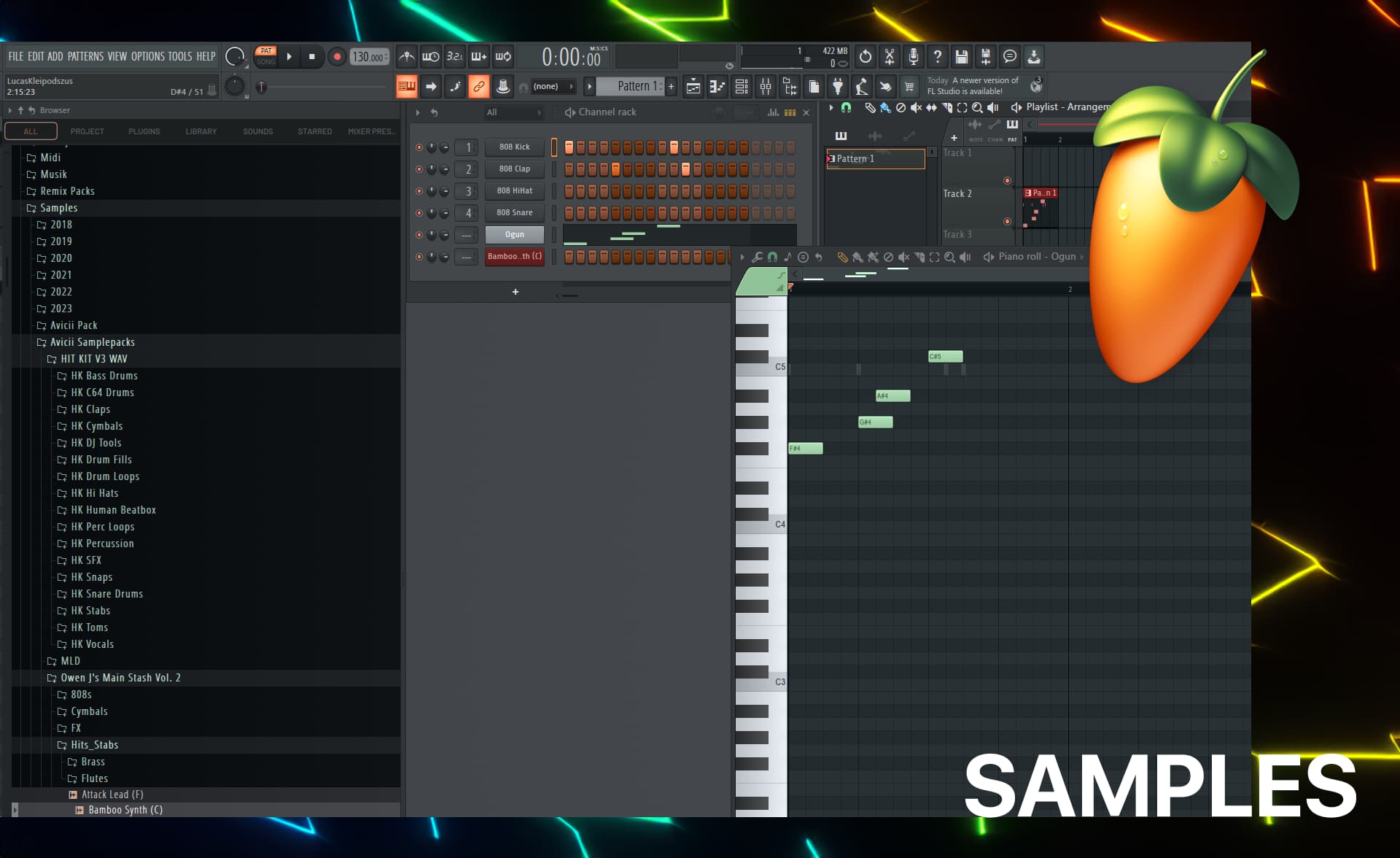
ProductionProcess note
FL Studio Workflow Mastery Part 1: Project Setup & Organization
Master FL Studio project organization and workflow fundamentals. Learn professional project setup, color-coding systems, template creation, and file management that will save you hours on every track.
6 min readUpdated
FL Studio Workflow Mastery Part 1: Project Setup & Organization
Welcome to the FL Studio Workflow Mastery series! Over the next three articles, I'll share the exact workflow that saves me hours on every production and helps me create professional tracks consistently.
Series Overview
- Part 1 (This Article): Project setup, organization, and templates
- Part 2: Sound design workflow and sample management
- Part 3: Mixing workflow and export strategies
Why Workflow Matters
A good workflow isn't about being rigid—it's about removing friction so creativity can flow. When your tools are organized:
- You spend less time searching for files
- You make decisions faster
- You maintain consistency across projects
- You can focus on music, not logistics
The 5-Minute Rule: If setup takes longer than 5 minutes, you're doing it wrong.
The Foundation: Folder Structure
Master Project Folder Template
Create this folder structure once, then copy it for every new project:
ProjectName_YYYY-MM-DD/
├── 01_Project/
│   └── ProjectName.flp
├── 02_Audio/
│   ├── Stems/
│   ├── Recordings/
│   └── Exports/
├── 03_MIDI/
│   ├── Patterns/
│   └── Clips/
├── 04_Samples/
│   ├── OneShots/
│   └── Loops/
├── 05_References/
│   └── ReferenceTracks/
├── 06_Docs/
│   ├── Lyrics.txt
│   └── Notes.txt
└── 07_Final/
    ├── Mix/
    └── Master/
Pro Tip: Number folders (01, 02, 03) so they sort in the order you use them.
Sample Library Organization
Keep your sample library separate from projects:
Samples/
├── Drums/
│   ├── Kicks/
│   ├── Snares/
│   ├── Claps/
│   ├── Hihats/
│   └── Percussion/
├── Instruments/
│   ├── Bass/
│   ├── Synth/
│   ├── Keys/
│   └── Guitar/
├── Vocals/
│   ├── Phrases/
│   ├── OneShots/
│   └── Adlibs/
├── FX/
│   ├── Impacts/
│   ├── Risers/
│   ├── Downlifters/
│   └── Textures/
└── Loops/
    ├── DrumLoops/
    ├── MelodicLoops/
    └── TopLoops/
FL Studio Browser Organization
Set up your FL Studio browser sidebar:
Right-click in browser → "Add folder" for:
- Your main samples folder
- Project folder (changes per project)
- Plugin presets folder
- MIDI clips folder
Reorder by dragging so your most-used folders are at the top.
Project Setup Checklist
Before Making a Single Sound
1. Create Project Folder
# Use consistent naming
ArtistName_TrackName_YYYY-MM-DD
2. Set Project BPM
- Click tempo display (top toolbar)
- Type your BPM
- Consider: half-time or double-time feel
3. Configure Project Settings
Options → Project Settings:
- Timebase (PPQ): 96 (standard) or 384 (tighter timing)
- Time signature: Usually 4/4
- Count before recording: 1 bar
Options → Audio Settings:
- Sample rate: 44100 Hz (standard) or 48000 Hz (video)
- Buffer length: As low as possible without crackles
4. Set Up the Mixer
My standard mixer layout:
Channels 1-4:    Master Busses
  1: Master (keep at 0dB)
  2: Drums Bus
  3: Synths Bus
  4: Vocals Bus

Channels 5-12:   Drums
  5: Kick
  6: Snare
  7: Clap
  8: Hihats
  9: Open Hats
  10: Percussion 1
  11: Percussion 2
  12: Drum Room (reverb send)

Channels 13-16:  Bass
  13: Sub Bass
  14: Mid Bass
  15: Bass Layer
  16: Bass Bus

Channels 17-24:  Synths
  17: Lead Main
  18: Lead Layer
  19: Chords Main
  20: Chords Layer
  21: Pluck/Arp
  22: Pad
  23: FX
  24: Synth Bus

Channels 25-28:  Vocals
  25: Lead Vocal
  26: Backing Vox
  27: Vocal FX
  28: Vocal Bus

Channels 29-32:  Effects
  29: Reverb Short
  30: Reverb Long
  31: Delay
  32: Master FX
The Color-Coding System
Why Colors Matter
Your brain processes color faster than text. A consistent color system means:
- Instant channel identification
- Faster mixing decisions
- Easier collaboration
- Professional presentation
The Livvux Color System
Drums: Red/Orange (#FF4444)
- Kick: Dark red
- Snare: Bright red
- Hats: Orange-red
- Percussion: Orange
Bass: Purple/Violet (#9B59B6)
- Sub: Dark purple
- Mid: Light purple
- Layer: Violet
Synths/Leads: Yellow/Gold (#F1C40F)
- Lead: Bright yellow
- Chords: Gold
- Pluck: Pale yellow
- Pad: Cream
Vocals: Green (#2ECC71)
- Lead: Bright green
- Backing: Light green
- FX: Teal
Effects: Blue (#3498DB)
- Reverb: Light blue
- Delay: Sky blue
- Master FX: Navy
Busses: Gray (#95A5A6)
- All group busses: Gray
Applying Colors in FL Studio
Method 1: Right-click channel
- Right-click mixer channel
- "Color" → Select color
- Name the channel
Method 2: Color presets
- Set up one channel with perfect color
- Right-click → "Save color preset"
- Apply to other channels
Method 3: Batch coloring
- Select multiple channels (Ctrl+click)
- Right-click → "Color selected"
Naming Conventions
Pattern Naming
Bad names:
- Pattern 1, Pattern 2, Pattern 3
- 1, 2, 3, 4
Good names:
Kick_Main
Snare_Verse
Hihats_Chill
Bass_Drop
Lead_Chords_V1
Vocal_Hook
FX_Riser_Drop1
Format: [Element]_[Description]_[Version]
Playlist Track Headers
Organize your arrangement view:
Track 1: MARKERS (Song sections)
Track 2: TEMPO (Automation)
Track 3: KICK
Track 4: SNARE/CLAP
Track 5: HATS
Track 6: PERC
Track 7: BASS
Track 8: LEAD
Track 9: CHORDS
Track 10: PAD
Track 11: FX
Track 12: VOCALS
Pro tip: Right-click track header → "Change color" to match mixer channels
Creating Your Template
Step-by-Step Template Creation
1. Set Up the Mixer
- Create all channels
- Apply color coding
- Name everything
- Add basic routing (busses)
2. Add Default Plugins
On every channel:
- Fruity Parametric EQ 2 (for cleanup)
- Fruity Limiter (for safety)
On Drums Bus:
- Maximus (light compression)
- Fruity Stereo Enhancer
On Reverb Send:
- Fruity Reverb 2 (preset: Medium Room)
3. Configure Sidechain
- Route Kick (ch 5) to sub-bass sidechain
- Set up ducking amount
4. Add Instruments
Add your most-used instruments with default settings:
- 3xOsc for quick bass
- Sytrus for leads
- FLEX for pads
5. Save the Template
File → Save as template → Name it
Recommended template names:
Default - Basic starting point
Drum & Bass - DnB focused
House - 4/4 dance music
Pop - Songwriting template
Suno Integration - For editing AI tracks
Template Best Practices
Keep it lean:
- Don't add too many plugins (adds load time)
- Remove what you don't use
- Update seasonally
Make it yours:
- Your color scheme
- Your go-to sounds
- Your routing preferences
Document it:
- Keep notes on what each template includes
- Update when you change workflow
Workflow Accelerators
Keyboard Shortcuts to Memorize
Essential shortcuts:
F5: Open Playlist
F6: Open Channel Rack
F7: Open Piano Roll
F8: Open Browser
F9: Open Mixer
F11: View Settings
Space: Play/Pause
Ctrl+S: Save
Ctrl+Z: Undo
Ctrl+Shift+Z: Redo
Piano roll:
P: Pencil tool
B: Brush tool
C: Cut tool
Z: Zoom tool
Alt+Scroll: Horizontal zoom
Ctrl+Scroll: Vertical zoom
Arrangement:
Ctrl+B: Duplicate selection
Ctrl+L: Quick quantize
Ctrl+Q: Quantize
Ctrl+M: Merge pattern clips
Plugin Organization
Create plugin database categories:
Right-click plugin → "Add to" → "New category"
Create categories like:
- My Favorites
- Drums
- Synths
- Vocals
- Mixing
- Mastering
Re-order plugins: Drag plugins in the browser to reorder within categories.
Quick Sample Access
Add sample folders to browser:
- Click "Add folder" in browser
- Navigate to your samples
- Name it clearly
Favorite samples: Right-click sample → "Add to favorites"
Project Management Best Practices
The 3-Version Rule
Always keep at least 3 versions:
ProjectName_v1_Idea.flp      (Initial concept)
ProjectName_v2_Arranged.flp  (Full arrangement)
ProjectName_v3_Final.flp     (Mixing complete)
Why? If you break something, you can go back.
Regular Saves
Auto-save: Options → File settings → Auto-save
- Every 5-10 minutes
- Keep 10+ backups
Manual saves:
- Ctrl+S every few minutes
- Before major changes
- Before closing
Backup Strategy
Local backup:
- External drive
- After every session
- Weekly full backup
Cloud backup:
- Google Drive, Dropbox, or OneDrive
- Project folders sync automatically
- Peace of mind
Collaboration Workflow
Preparing Projects for Collaboration
1. Consolidate files:
File → Export → Project data files →
"Copy to project folder"
2. Include notes:
Create a README.txt in project folder:
Project: Track Name
BPM: 128
Key: E Minor
Notes: Started with Suno AI, replaced drums
Missing plugins: Serum (bass), RC-20 (texture)
3. Export stems: Before sharing, export stems of main elements
Version Control
When collaborating:
- Use initials:
TrackName_JD_v1.flp - Increment versions: v1, v2, v3
- Keep notes of what changed
Troubleshooting Common Issues
"My projects are disorganized"
Solution:
- Create a "Cleanup Day"
- Apply this system to one project
- Save as template
- Use template for next 5 projects
- Refine system
"I can never find my samples"
Solution:
- One weekend, organize your sample library
- Use the folder structure above
- Delete samples you never use
- Create favorites list
"My templates take forever to load"
Solution:
- Remove unused plugins
- Reduce default instruments
- Don't add heavy plugins by default
- Create multiple light templates
"I forget to save versions"
Solution:
- Set auto-save to 5 minutes
- Use "Save new version" (Ctrl+Shift+S)
- Name versions descriptively
Your Action Plan
This Week
Day 1:
- Create folder structure template
- Set up your samples library
Day 2:
- Create your first FL Studio template
- Set up mixer with color coding
Day 3:
- Memorize 5 essential shortcuts
- Practice using them
Day 4:
- Organize one old project
- Apply naming conventions
Day 5:
- Create backup system
- Test cloud sync
Day 6-7:
- Use your new template
- Refine based on experience
Download the Template
Want to skip the setup? Download my professional FL Studio Template with all the routing, colors, and plugins pre-configured:
Get the Free FL Studio Template →
Continue Your Learning
Next in this series:
Related resources:
Questions?
What's your biggest workflow challenge? Let me know in the comments or reach out on social media!
Watch video tutorials: YouTube @livvux
Follow for tips: Instagram @livvux
Questions / Answers
Frequently asked questions
What is the best project organization system for FL Studio?
The best system uses color-coded mixer channels, descriptive naming for patterns and tracks, consistent folder structures, and project templates. Keep everything organized from the start rather than trying to fix it later.
How do I create an effective FL Studio template?
Set up your standard mixer routing, add commonly used plugins to channels, configure sidechain routing, set up your preferred color scheme, and save as a template. Include your go-to instruments and effects with default settings you use often.
What folder structure should I use for music projects?
Use a main project folder with subfolders for Audio/Stems, MIDI, Samples, Exports, and References. Keep project files organized by date or project name, and maintain a separate samples library organized by type.
Why is color-coding important in FL Studio?
Color-coding helps you quickly identify different instrument types (drums, bass, synths, vocals), improves workflow speed, makes mixing easier by grouping related channels, and helps others understand your project structure when collaborating.
Want more Livvux songs, breakdowns, and producer diary notes?
Follow my YouTube channel for the music and the process
Stay Close to the Sound
Get new Livvux releases, track breakdowns, producer notes, and useful FL Studio or AI-assisted workflow ideas in your inbox.
About the author

Livvux
Lucas is the producer behind Livvux, creating emotional EDM and showing the process behind the sound. Expect FL Studio workflow, AI-assisted ideas, Avicii-inspired music thinking, and personal track breakdowns.
Continue reading
Related posts
Free Livvux producer resources
Download the checklists, guides, and templates behind my emotional EDM workflow.